Checklist Template Missing During Assessment Creation in ASD
Purpose: This article outlines the step-by-step guidance for troubleshooting and resolution when a user is unable to find the Checklist Template while creating an assessment in the ASD app.
Troubleshooting & Resolution Steps:
Troubleshooting & Resolution Steps:
Step 1: Log In to the Reported Tenant
Log in to the system using valid credentials for the reported tenant where the issue occurs.
Step 2: Navigate to the Asset Strategy Development
1. From the Home page, go to the Asset Integrity tile.
2. Open the Asset Strategy Development (ASD) module.
Step 3: Click "+" Icon on the right- side and Select Equipment or Functional Location to initiate assessment creation.
Step 4. In the pop-up window:
Enter a name of Assessment in the Description field.
Select the required Equipment.
At this point, you may observe that the Checklist Template dropdown is empty or not displaying any options (as shown in the screenshot).
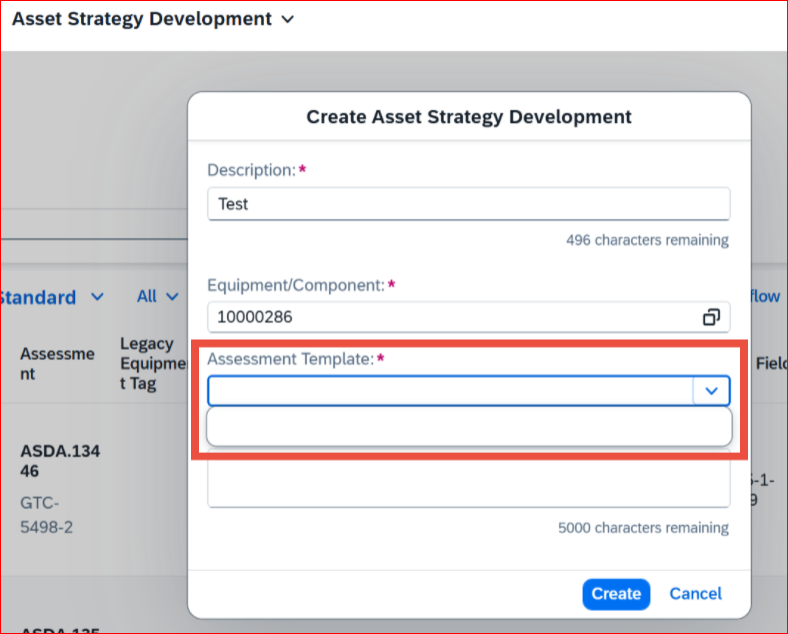
Step 5: To investigate this, go back to the Home page > Open the Master Data tile > Launch the Equipment app.
Select the required Equipment.
At this point, you may observe that the Checklist Template dropdown is empty or not displaying any options (as shown in the screenshot).
Step 5: To investigate this, go back to the Home page > Open the Master Data tile > Launch the Equipment app.
Step 6: Locate the Relevant Equipment.
Use the Search bar to find the specific equipment that is causing the issue.
Step 7: Open the Equipment, click on the "Assignments" tab to s\to verify whether any template has been assigned to the equipment.
Step 8: On the top-right, click “Add Template" and select the appropriate template (e.g., RBI+, Qualitative, etc.) and Click on Ok Button.
Step 9: Once the required template is added, Verify Template Availability in ASD.
Try to create a new assessment again.
The Checklist Template dropdown should now show the template for selection.
Resolution Summary
The issue occurs when the Checklist Template is not linked to the selected Equipment in Master Data. By Adding the appropriate template under the Equipment's datasheet resolves the issue and enables template selection during assessment creation in ASD.